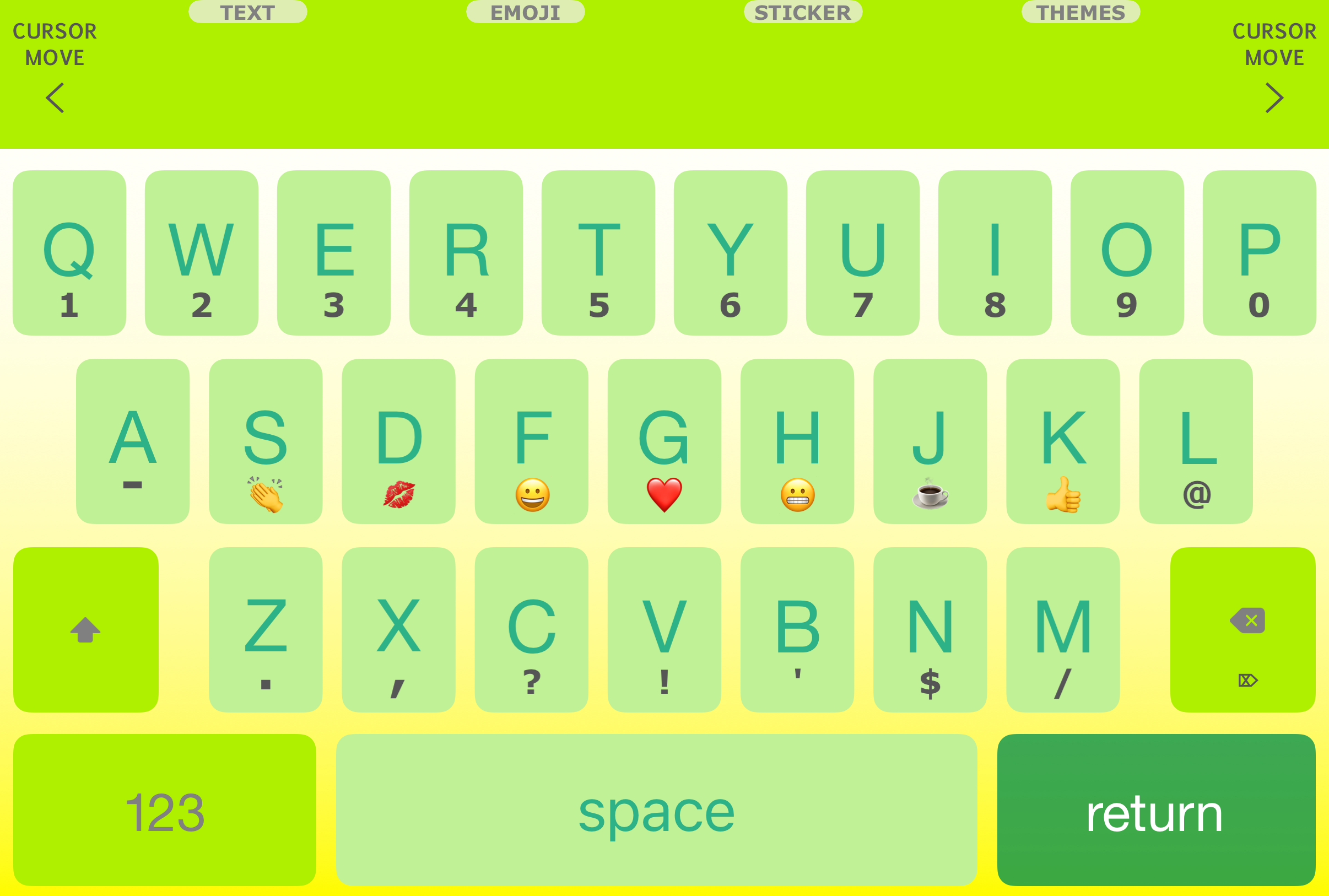
Start in the AspectKey app
Open the AspectKey companion app and choose Theme. This opens the theme groups. Pick a group to see its themes, then select the one you want to use.
You choose the appearance in AspectKey. The iPhone or iPad Settings app is where you add the keyboard itself; it is not the theme selector.
Try it where you write
Return to a writing app and select AspectKey from the globe menu. Try a short note so you can see the keys and toolbar in the setting where you normally use them.
If you want another look, return to Theme and choose again. The website’s gallery shows 40 real native theme previews, so you can explore different colors before choosing in the app.
Keep your language choice separate
The Theme setting changes the keyboard’s appearance. Use Language in the companion app to choose the language you type in, and Interface Language to change the app’s menus.
A keyboard layout and a prediction language pack are separate choices. If you also change languages, check the prediction settings and the installed language pack for that language.