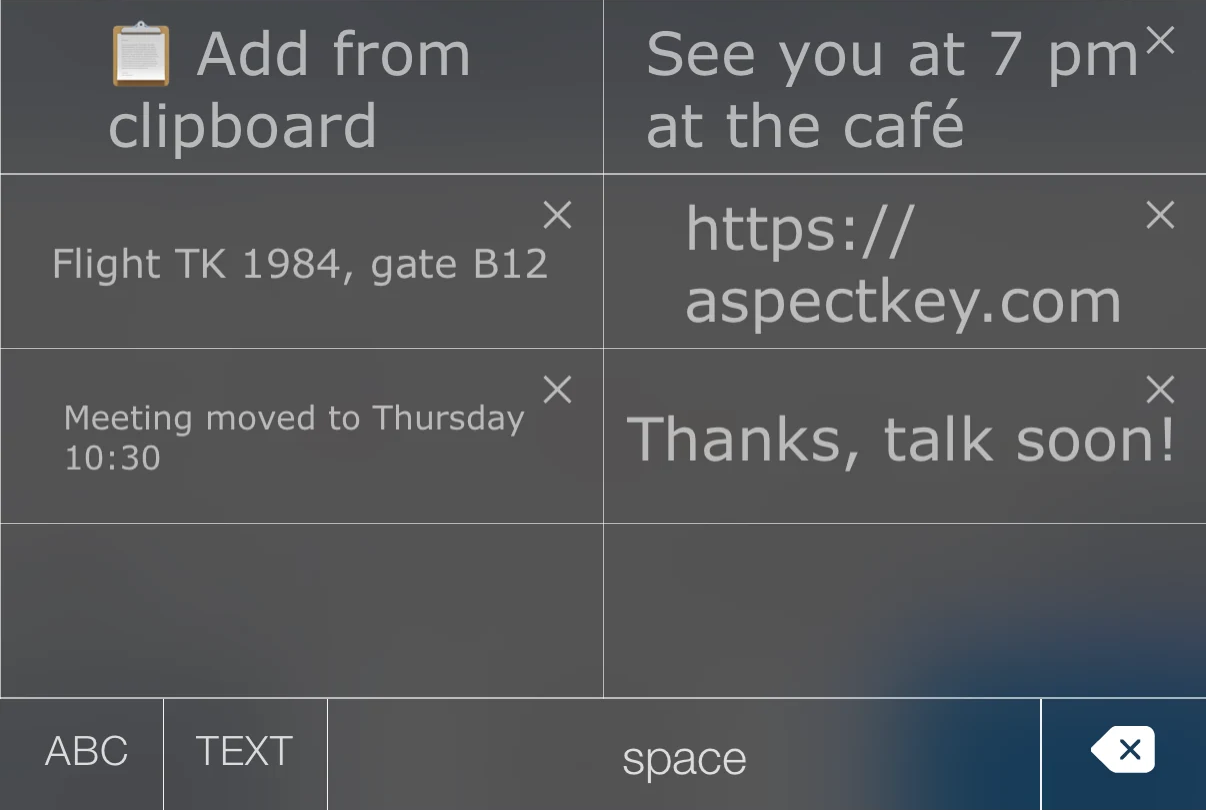
For something you just copied
Copy the text you want to keep. Open the keyboard’s text list and use its clipboard control to switch to clipboard history. When new copied text is available and Full Access is enabled, Add from clipboard appears.
Tap Add from clipboard to save the copied text to history. This step saves the entry; it does not insert it into the current text field. Tap the saved entry when you want to insert it.
For something you write again and again
Open My Text List in the AspectKey companion app and edit the phrases you want at hand. You could keep a greeting, an address format or a sign-off there. Choose your own text rather than rewriting it every time.
In the keyboard’s text list, use the TEXT view for these saved phrases. Tap an entry to insert it into the field where you are writing.
If Add from clipboard is missing
Check that you have copied a new text item and enabled Allow Full Access for AspectKey in Settings → General → Keyboard → Keyboards → AspectKey. Then return to the keyboard and open clipboard history again.
The clipboard view and TEXT view serve different purposes: history holds the copied items you add, while My Text List holds the phrases you prepare. Switch views to find the kind of text you need.