Compare what you will really use
Most keyboard comparisons sort apps by popularity. That ordering says little about your own typing. Start with the two or three things you do every day: which languages you switch between, whether you send short messages or long drafts, whether you use emoji and stickers, and whether you retype the same phrases such as an address or a signature.
From there, five criteria cover most of the difference between keyboards: the layouts and languages available, the quality of prediction and autocorrect in your language, how much of the look you can change, whether clipboard history or saved phrases exist, and what the keyboard asks you to enable before those features work.
Run a ten-minute test before you commit
Install the keyboard, then add it in Settings → General → Keyboard → Keyboards → Add New Keyboard. Open Notes, hold the globe key and choose the new keyboard.
Type a message you would actually send, in your language, and watch three things: whether suggestions appear at all, whether they match your wording, and whether autocorrect changes words you meant to keep. Then try only the extra features on your list — a keyboard that types well but handles clipboard work badly will not improve your day.
Decide about Full Access deliberately
iOS runs third-party keyboards in a sandbox. Apple’s documentation for keyboard developers explains that open access — the switch iOS labels Allow Full Access — enables network access and write access to a shared container. That is what lets a keyboard reach online services or share data with its companion app.
So the question is not whether Full Access is safe in general, but whether this keyboard’s extra features are worth it to you and whether its privacy policy explains what happens with that access. Read the policy of the keyboard you are testing before you enable the switch.
Where AspectKey fits, plainly
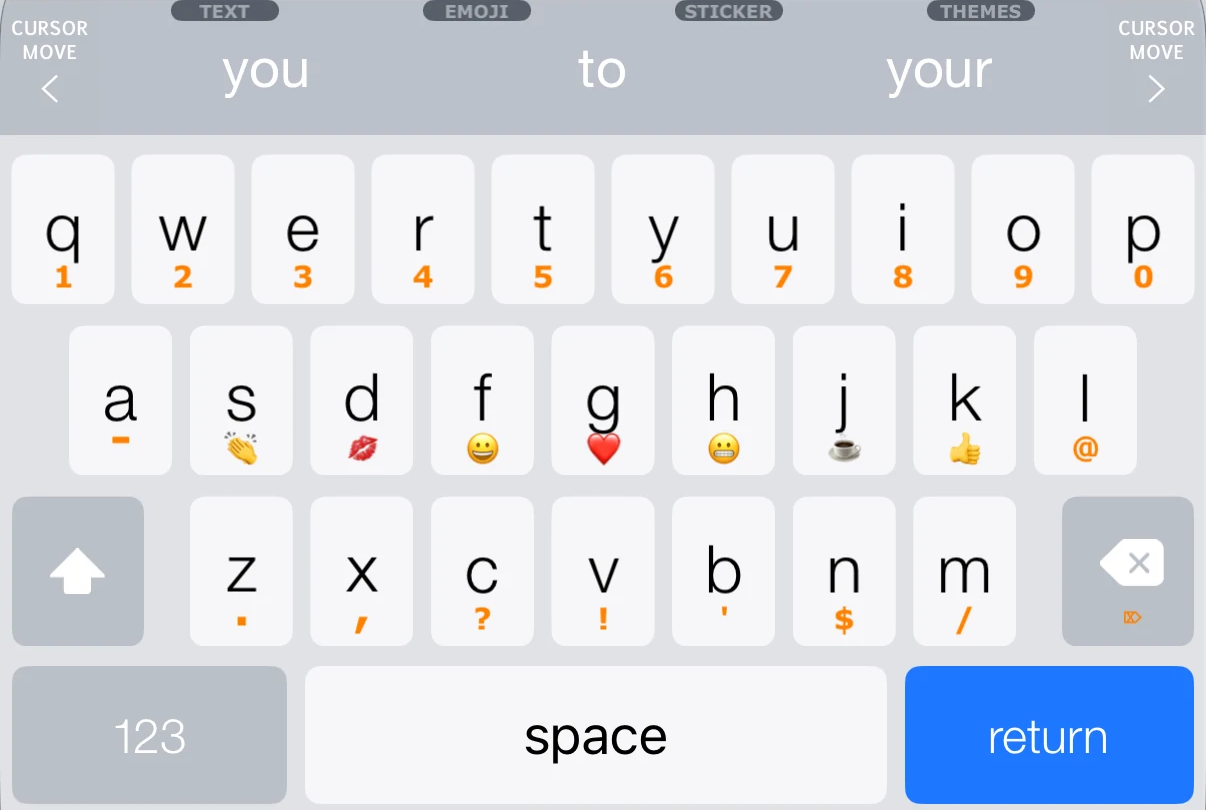
AspectKey is an iPhone keyboard with a companion app, built for iOS 15 or later. It offers 40 themes, 36 layouts, AI-powered word correction and word prediction, your own stickers, clipboard history and My Text List for phrases you reuse.
Typing, prediction, autocorrect and themes work without Full Access. The sticker panel, adding text from the clipboard, haptics, custom key sounds and the supplementary iOS dictionary need it. AspectKey is iPhone only today: the App Store listing is live, and Google Play is marked Coming Soon. Where it does not fit your list above, another keyboard is the better choice — that is what the test is for.
Sources and date
Apple, “Add or change keyboards on iPhone”, iPhone User Guide — support.apple.com/guide/iphone/add-or-change-keyboards-iph73b71eb/ios
Apple Developer Documentation, “Configuring open access for a custom keyboard” — developer.apple.com/documentation/uikit/configuring-open-access-for-a-custom-keyboard
Both sources were read on 31 October 2026. Product details describe AspectKey as this website presents it; store availability is stated as it stands today.